

Before you begin
You need:
 Access to your site’s WordPress admin dashboard, with permission to install plugins.
- Network admin access is only needed to onboard multiple sites through WordPress multisite.
- On WordPress VIP, adding Gist Answers from the Integrations Center also needs an Org admin in the VIP Dashboard. See Step 1.
- Your onboarding email from answers@gist.ai, which contains your API key.
- Your site’s accent color, fonts, and answer page URL.

You will receive an email from answers@gist.ai containing your API key and – if you don’t already have a Gist Answers account – a Set password button. Check Junk or Spam if the email is missing.
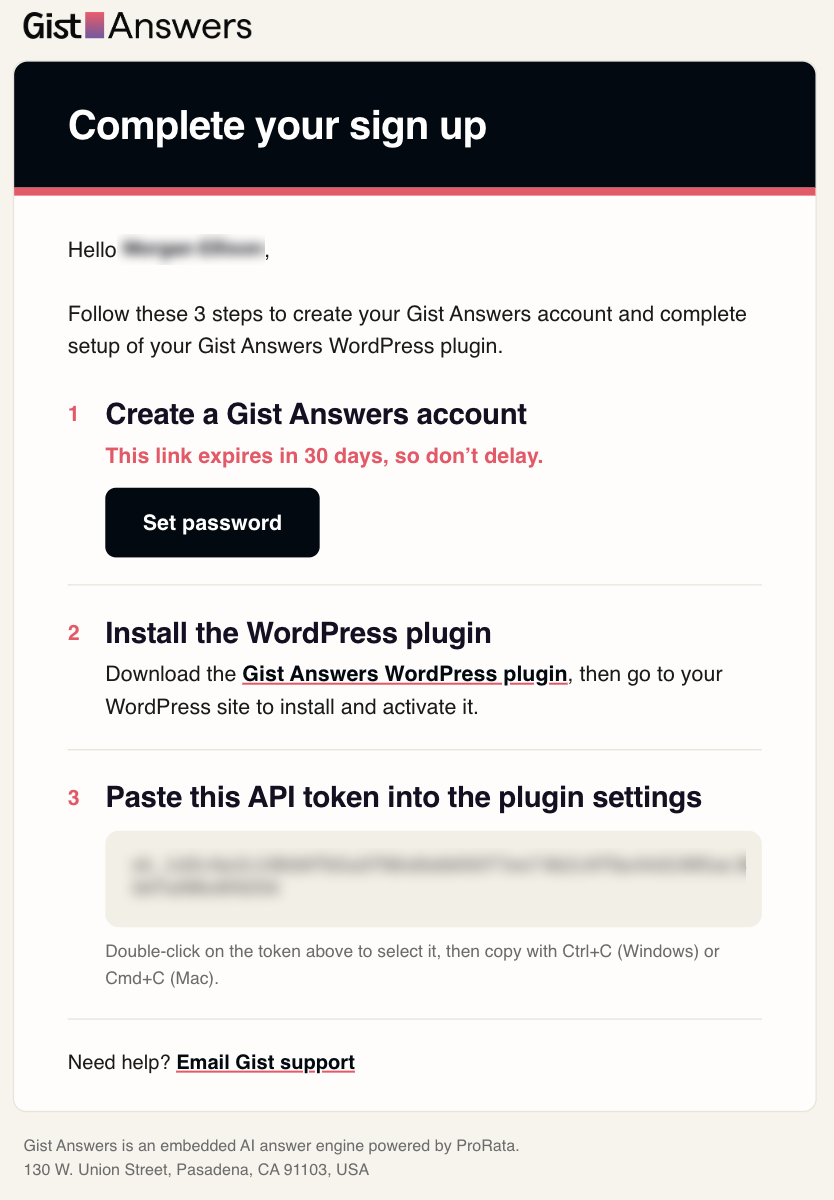
Click Set password to set up access to the Gist Answers console. It takes you to a Create account page, where you create your Gist Answers account: check your details, create and confirm a password, agree to the terms and conditions, and click Create account.
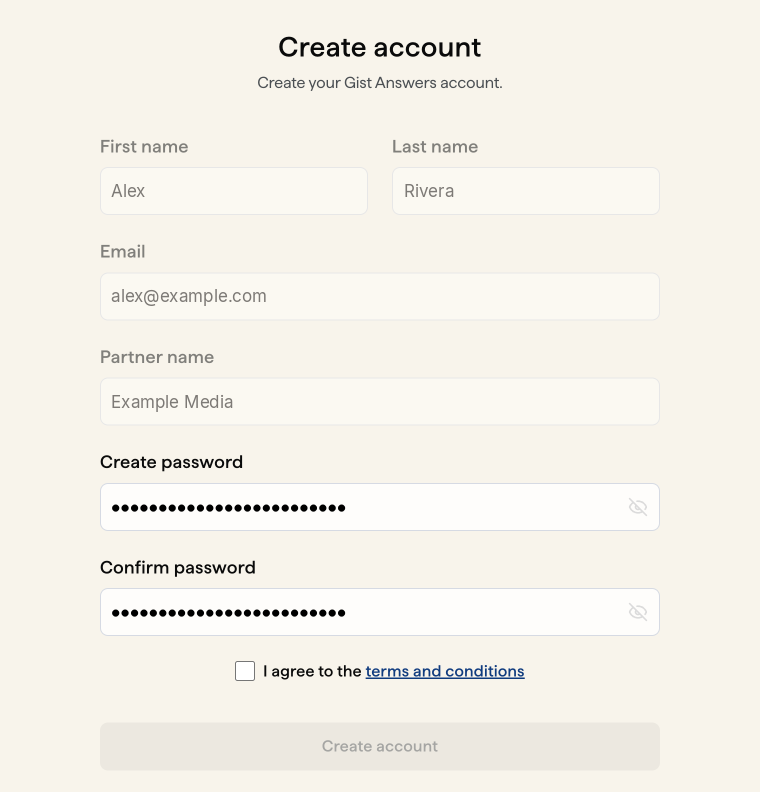
You will use your console sign-in details, including this password, in Step 4.
Use the API key from that email to connect the plugin in Step 2. If you add Gist Answers from the VIP Integrations Center, you enter it in the VIP Dashboard in Step 1 instead.
Download and install the plugin
Download the Gist Answers WordPress plugin.
- 1Log in to your WordPress admin dashboard.
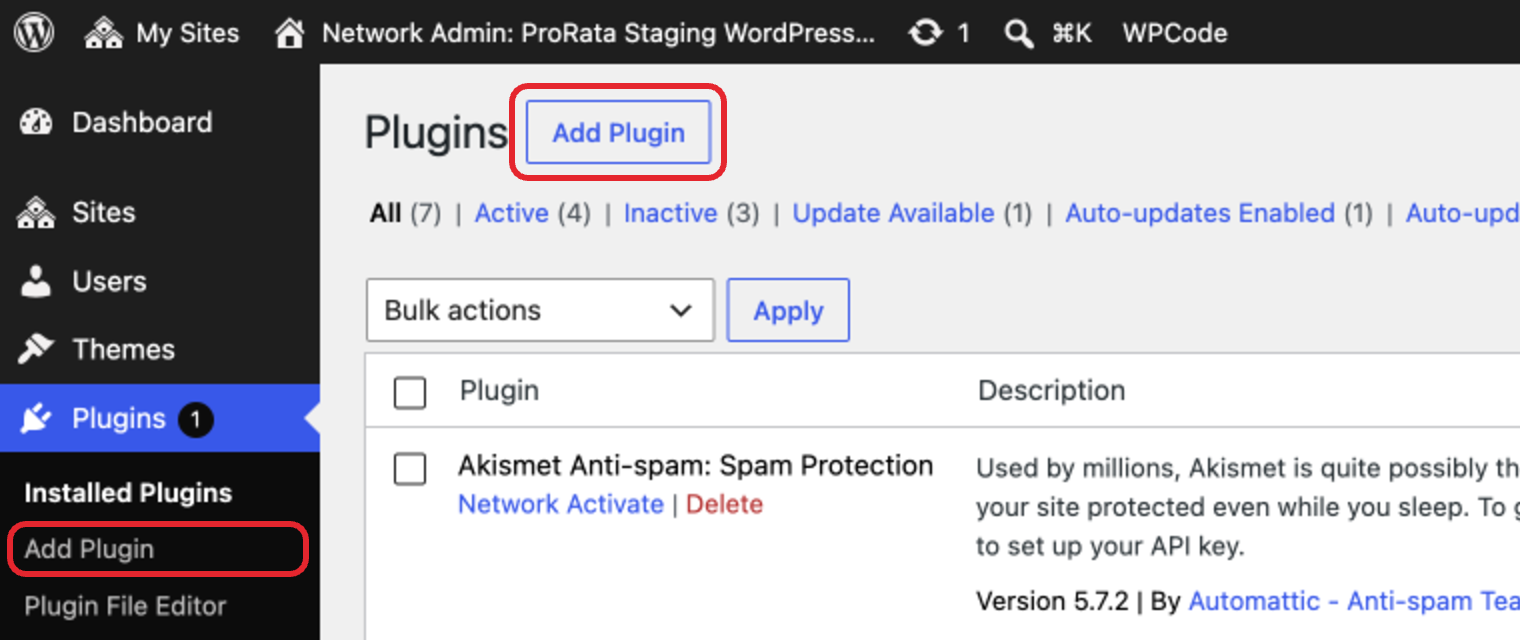
- 2Go to Plugins → Add Plugin → Upload Plugin.
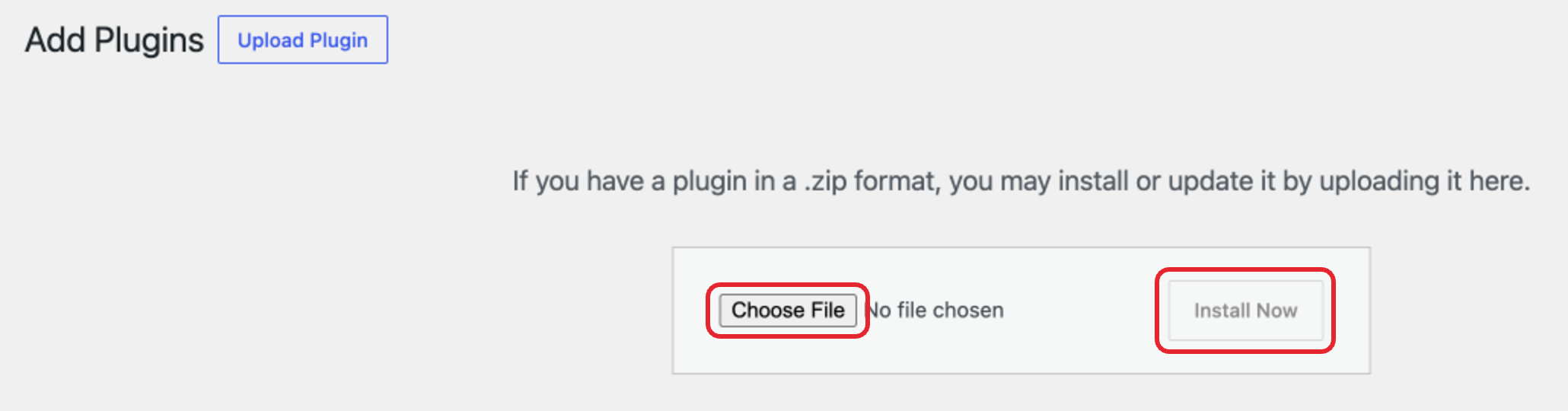
- 3Click Choose File, select the downloaded ZIP, then click Install Now.
- 4Click Activate Plugin.
- 1Log in to WordPress as a network administrator.
- 2Go to My Sites → Network Admin → Plugins and click Add Plugin.
- 3Click Upload Plugin, then Choose File, select the downloaded ZIP, and click Install Now.
- 4Click Network Activate.

VIP doesn’t allow plugins to be uploaded or installed from the WordPress admin dashboard, so the standard Upload Plugin steps won’t work. Use one of the two options below instead.
Add Gist Answers from the VIP Integrations Center (recommended)
VIP supplies and loads the plugin, so you don’t need the ZIP you downloaded and there’s no code to deploy. You’ll need an Org admin in the VIP Dashboard to add Gist Answers to your organization, and an App admin or Org admin to set it up.
- 1An Org admin logs in to the VIP Dashboard, selects Integrations Center at the top of the page, opens Gist Answers, and clicks + Add to Organization.
- 2Open your application in the VIP Dashboard and select Integrations in the left-hand menu. Use the dropdown at the upper left to choose your production environment.Start with production: the first site you connect in Step 2 must be your live site.
- 3Click Configure next to Gist Answers. Under Activate Integration, turn the switch to Active, then enter the API key from your onboarding email in the Gist API token field and save.On a multisite network, this activates Gist Answers for every site in the network.
- 4To test on a staging or development environment, choose it from the dropdown and repeat step 3 with the same API key.
Install the plugin manually through your wpcomvip repository
Use this if you’d rather manage the plugin code yourself. You’ll need write access to your site’s wpcomvip GitHub repository, so you may want to share these steps with the developer who manages your VIP code. Read VIP’s guide to adding plugins
- 1Unzip the plugin file you downloaded. VIP needs the plugin folder itself, not the ZIP.
- 2In your site’s wpcomvip GitHub repository, create a new branch and add the unzipped gist-answers folder to the plugins directory.
- 3Open a pull request and merge it into the branch that deploys to your production environment, plus any non-production environments you want to test on. VIP deploys merged code automatically.Include production: the first site you connect in Step 2 must be your live site.
- 4When the deploy finishes, log in to your WordPress admin dashboard, go to Plugins, and click Activate under Gist Answers. On a multisite network, go to My Sites → Network Admin → Plugins and click Network Activate.Prefer to activate in code? VIP recommends it to keep plugins consistent across environments. Instead of using the Plugins screen, add this line to client-mu-plugins/plugin-loader.php and deploy it. On multisite, this activates the plugin for every site in the network.wpcom_vip_load_plugin( 'gist-answers' );
With a manual install, you enter your API key in the plugin in Step 2, the same as on standard WordPress.


Connect your site
- 1Open Gist Answers in your WordPress menu.If you are onboarding multiple sites at once through WordPress multisite, open My Sites → Network Admin → Dashboard → Gist Answers.
- 2Enter the API key from your onboarding email and click Continue.Added Gist Answers from the VIP Integrations Center? You won’t see this screen. The plugin uses the key from your VIP Dashboard and shows a notice that WordPress VIP manages it. Skip ahead to 3.
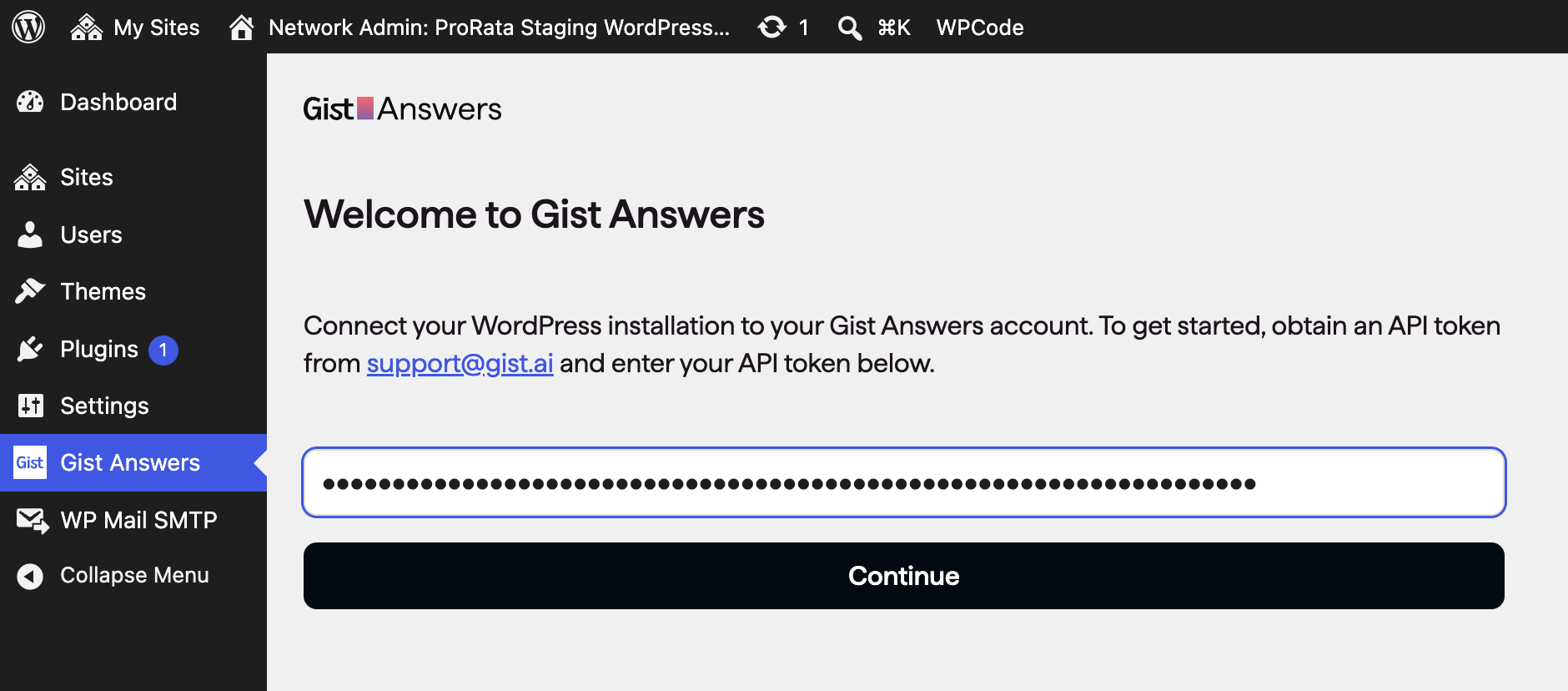
- 3Click Activate website next to each site you want to connect. A single-site install lists just one website; a multisite install lists every site in your network. If Gist already recognizes a site, for example because it’s already set up in your Gist Answers account, it’s activated right away without a dialog.
- 4The first site you activate must be a live (production) site. In the dialog, check This is not a test website, confirm the address shown under Activate it as a new website at, and click Submit. If this site is a test site, close the dialog and activate your production site first. You don’t need to add widgets to your production site until you’re ready.
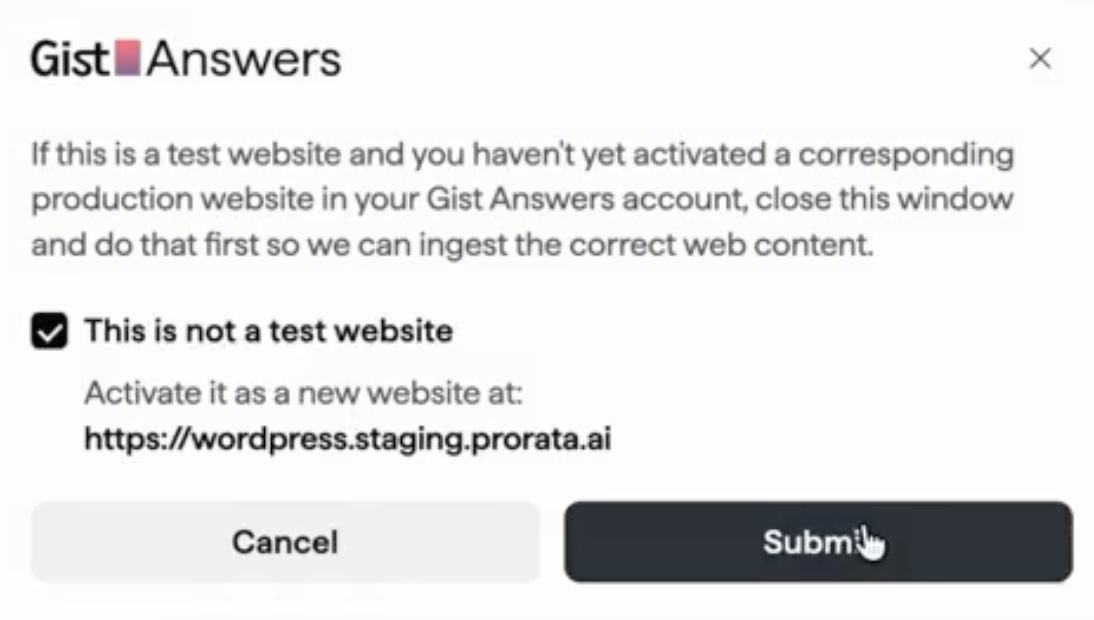
- 5For each site after that, the dialog asks whether it’s a test website:
- This is a test website linked to: choose this for a staging or development site. Select its production website from the dropdown, then click Submit.
- This is not a test website: choose this for another live (production) site, then click Submit.
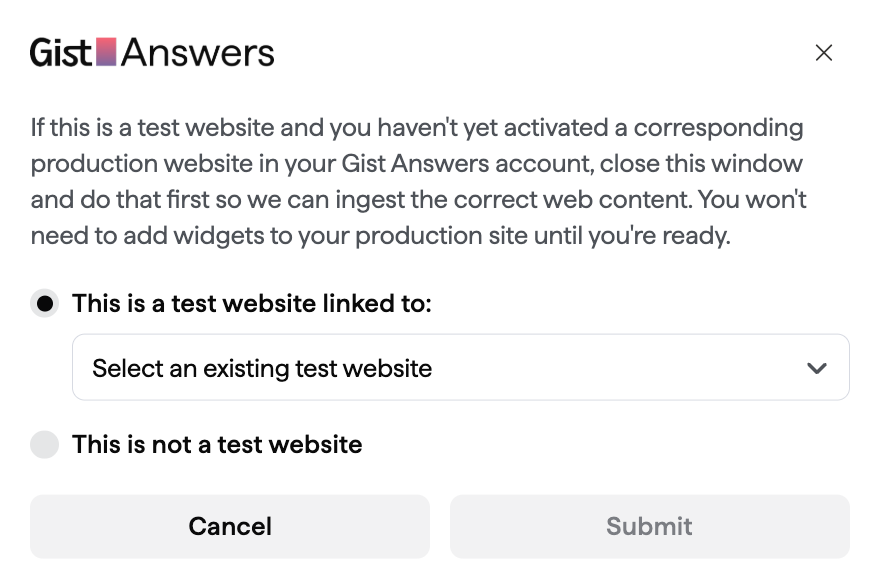

When you link a test site to a production site, both use the same content, settings, and widgets in your Gist Answers account. Your WordPress pages stay separate. You can link more than one test site to the same production site.
Widgets are shared. Editing a widget from a linked test site also changes it wherever it’s live on your production site. To try out changes safely, create a separate widget for testing.
You can’t currently change which production site a test site is linked to from the plugin, so check your selection before you click Submit. If you link the wrong site, email support@gist.ai.

Check content ingestion
- 1After you activate your sites, a Set up widgets button appears where each Activate website button was.

- 2Content ingestion starts automatically. The Status column shows Ingestion queued while it waits to run.
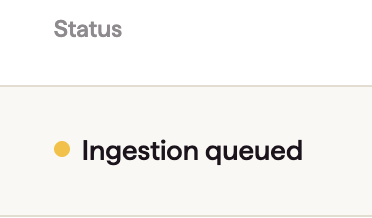
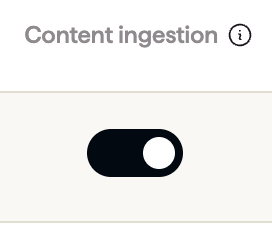
- 3If the Status column shows Ingestion paused instead, click the toggle in the Content ingestion column to turn it on.

Set up your first widget and answer page
- 1Click Set up widgets next to your site.If you’ve already set up widgets for another site, Set up widgets takes you straight to the Create your [site name] widgets dialog. Skip ahead to 3.
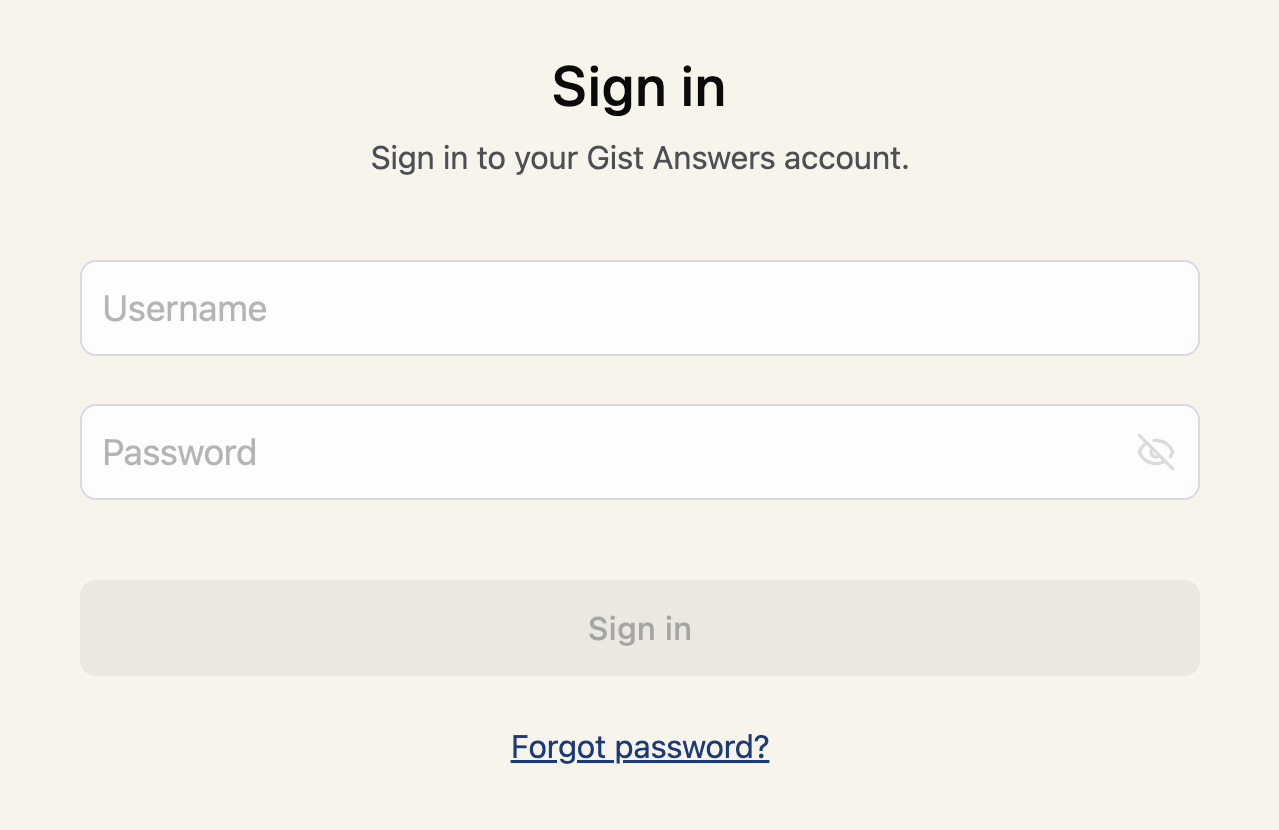
- 2A Sign in screen opens. Sign in to the Gist console with your Gist Answers credentials: either the ones you created by clicking Set password in the email from answers@gist.ai (see Before you begin), or the credentials you already use if you’ve signed in to the console before.
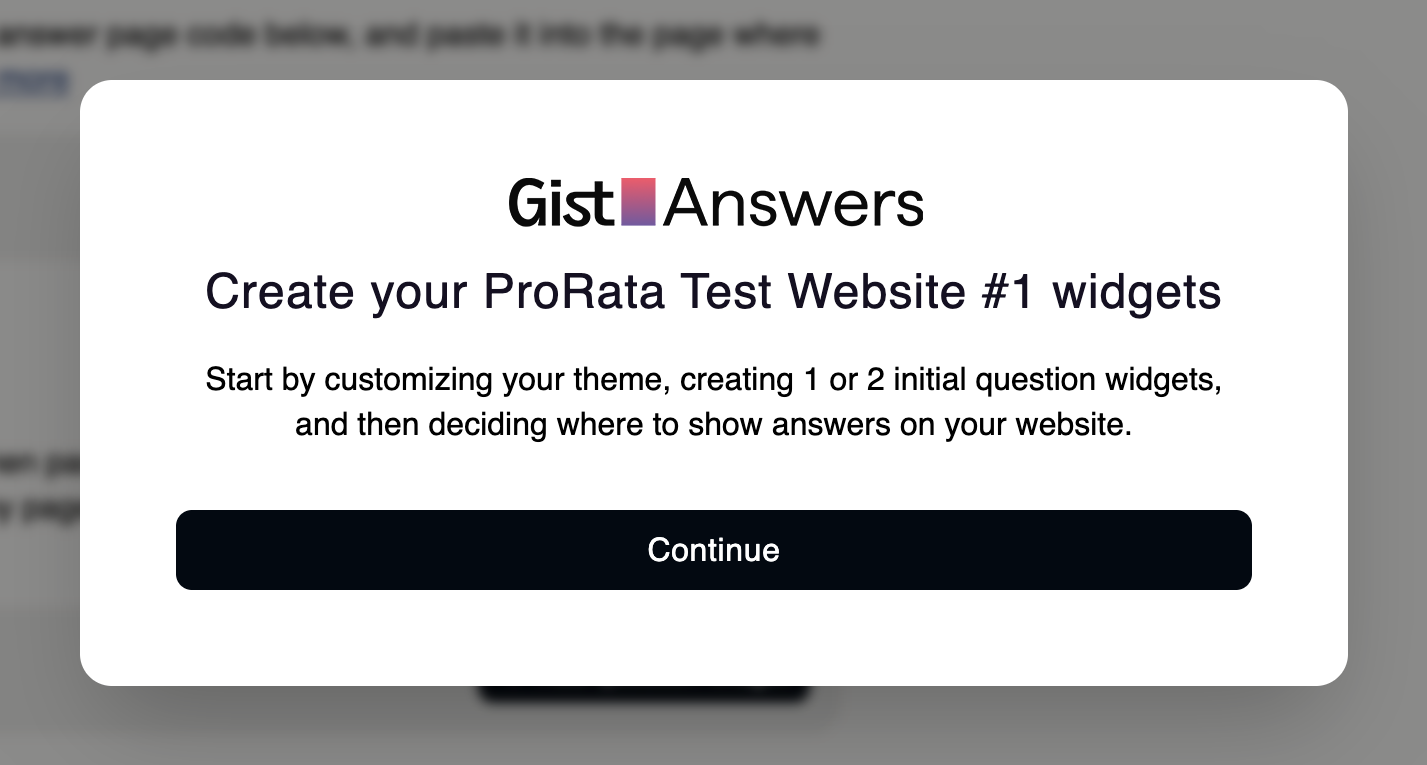
- 3A Create your [site name] widgets dialog opens. Click Continue.
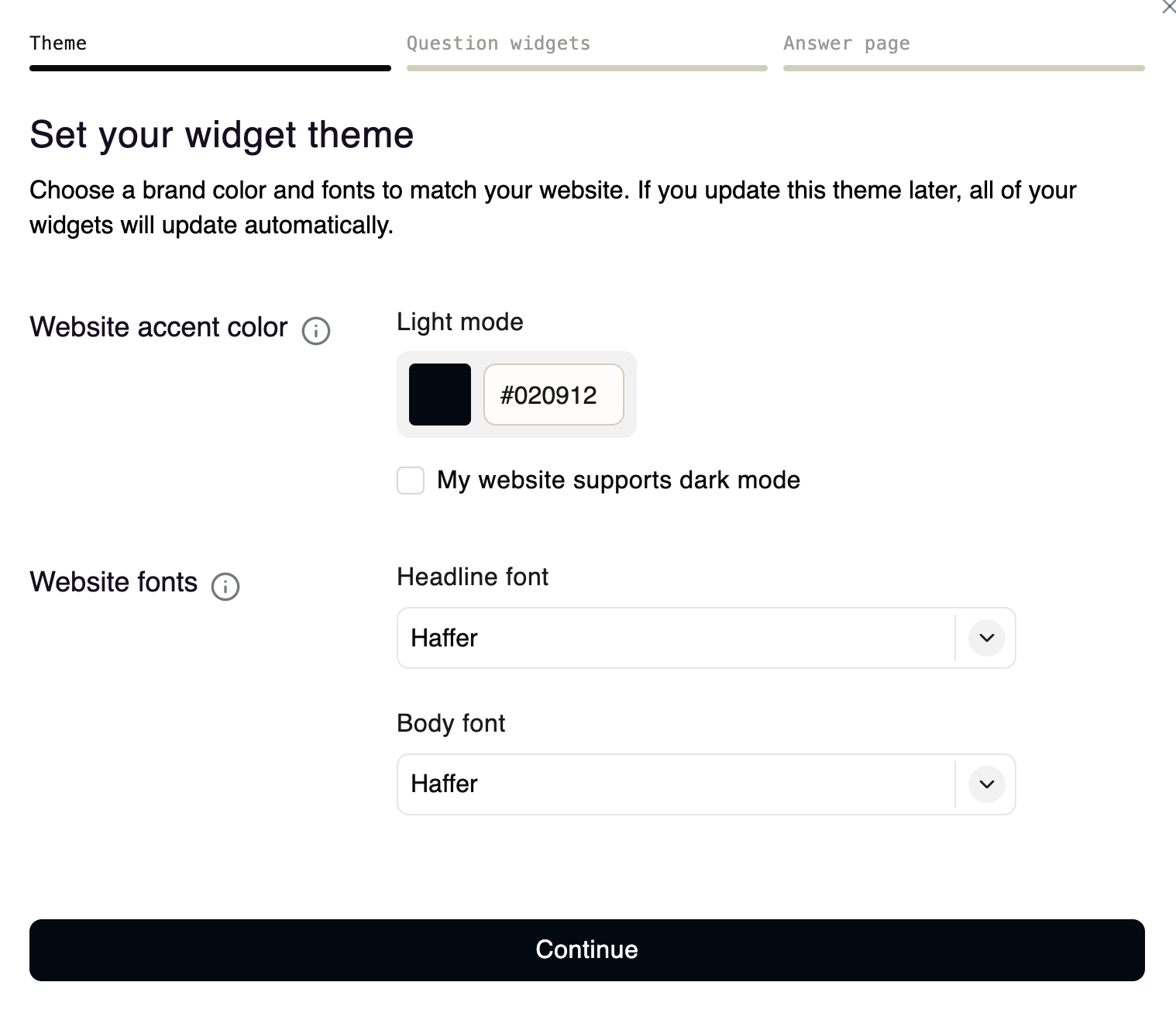
- 4Set your widget theme: enter your Website accent color as a hex code and choose a Headline font and Body font. If your site supports dark mode, select My website supports dark mode and add a complementary Dark mode color. Click Continue.
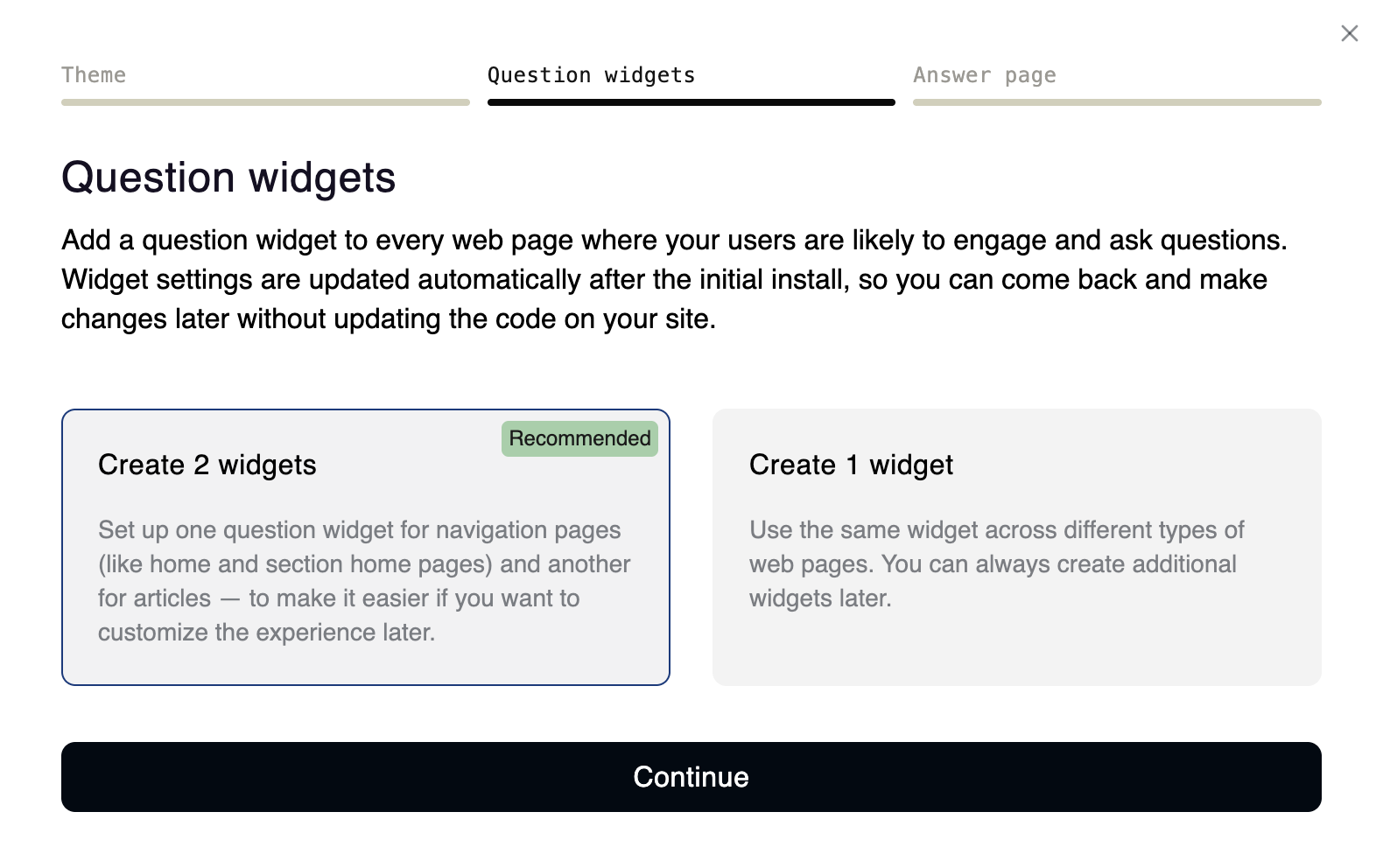
- 5On Question widgets, choose how many widgets to start with, then click Continue:
- Create 2 widgets (recommended): one widget for navigation pages, like your home and section pages, and another for articles. Keeping them separate makes it easier to tailor each experience later.
- Create 1 widget: the same widget appears on every type of page. You can add more widgets later.
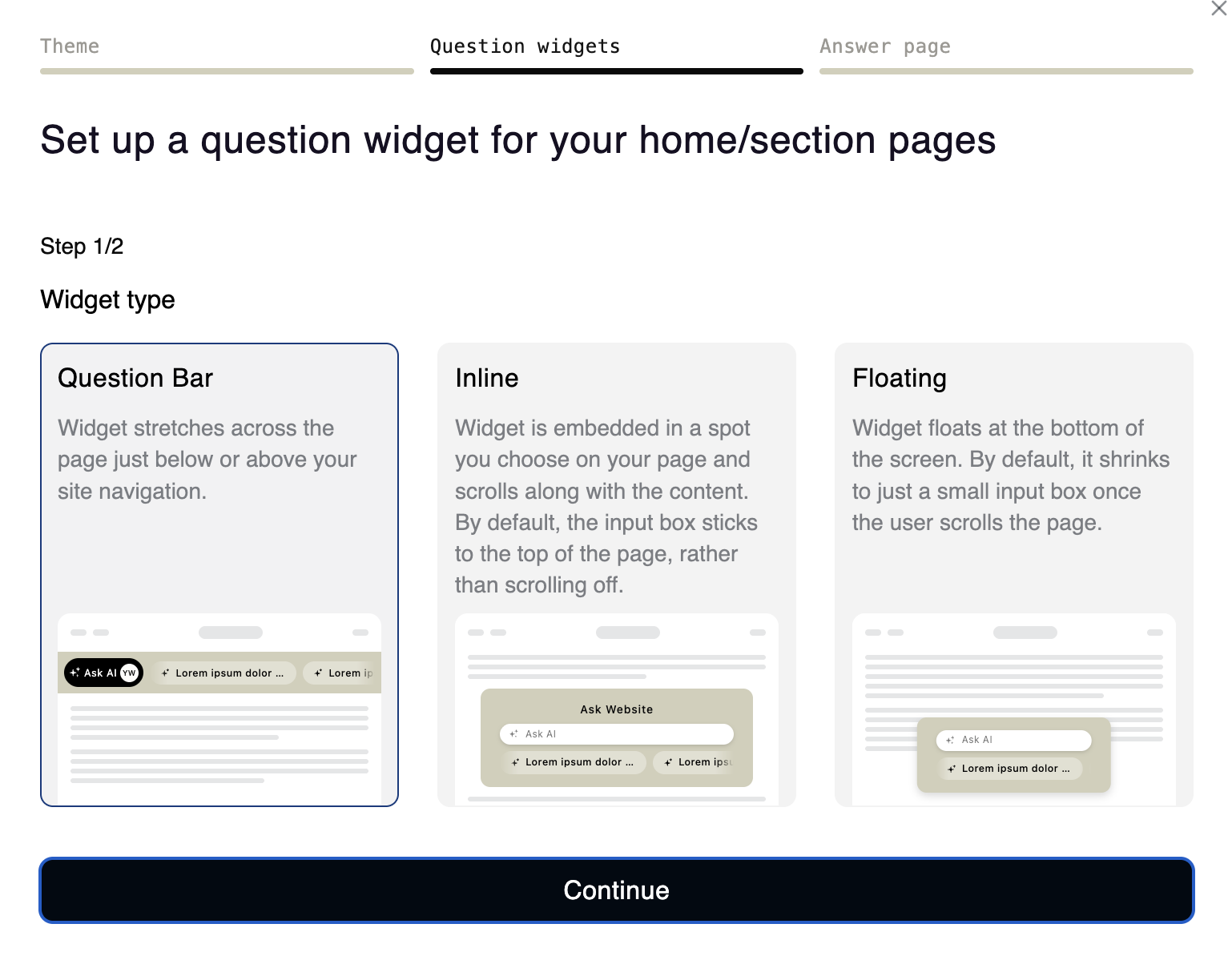
- 6Choose a Widget type, then click Continue to edit settings if needed. A widget’s initial settings are based on the widget theme you set. Different customization options are available depending on the widget type.
- Question Bar: stretches across the page, just above or below your site navigation.
- Choose whether visitors get a Button, an Input box, or None (just a scrolling marquee of suggested questions), and change the Prompt and Background color.
- Inline: sits in a spot you choose on the page and scrolls with the content. By default, the input box sticks to the top of the page instead of scrolling off.
- Customize the Header, Prompt, and Background color if you wish.
- Floating: floats at the bottom of the screen. By default, it shrinks to a small input box once the visitor scrolls.
- Offers the same options as Inline. A floating widget has two states: activated, which looks like the inline widget but floats over the page instead of sitting in one spot, and collapsed, a small input box.
- Question Bar: stretches across the page, just above or below your site navigation.
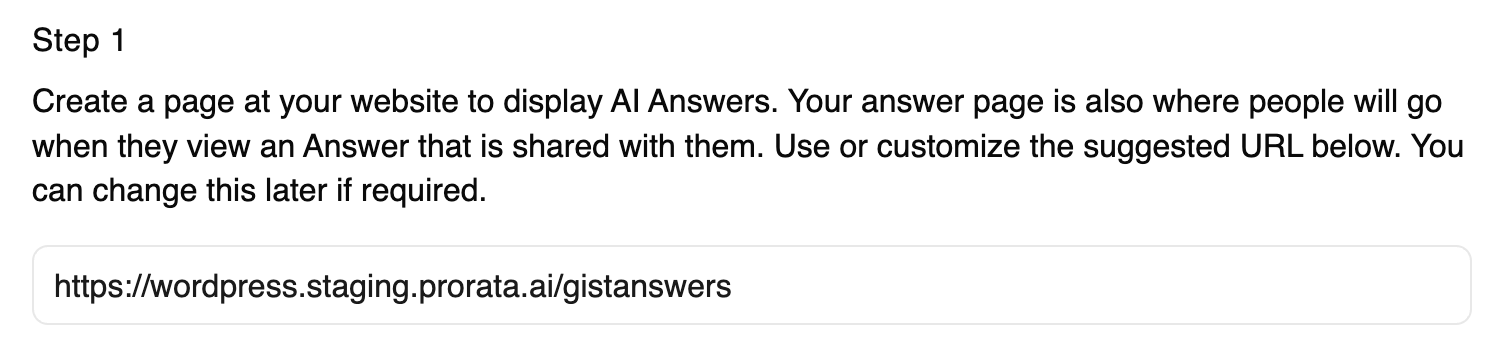
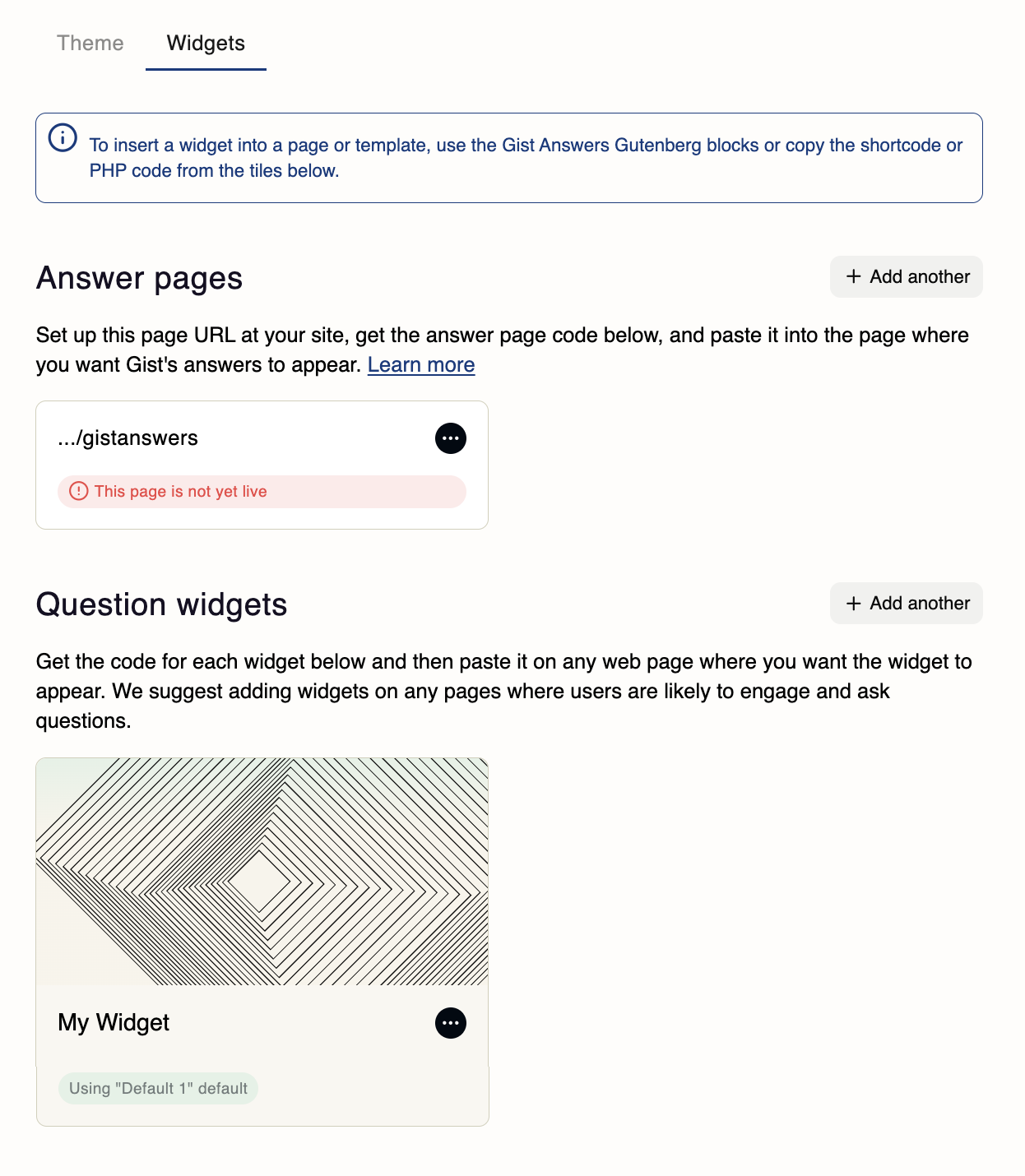
- 7Under Step 1 on the Answer page tab, use the suggested answer page URL or enter your own. This is where visitors land after submitting a question, and where shared answers open. You can change it later.
- 8Under Step 2, choose how to add the answer widget to your site, then click Continue:
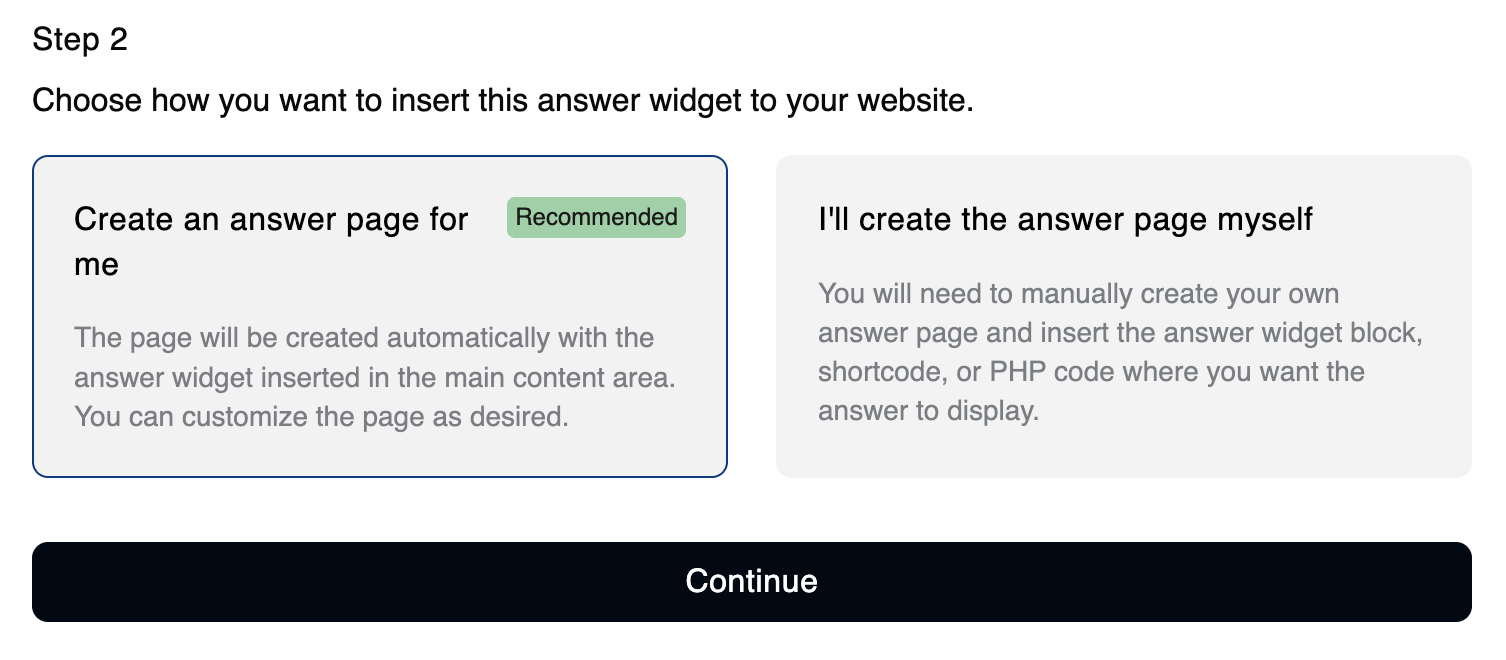
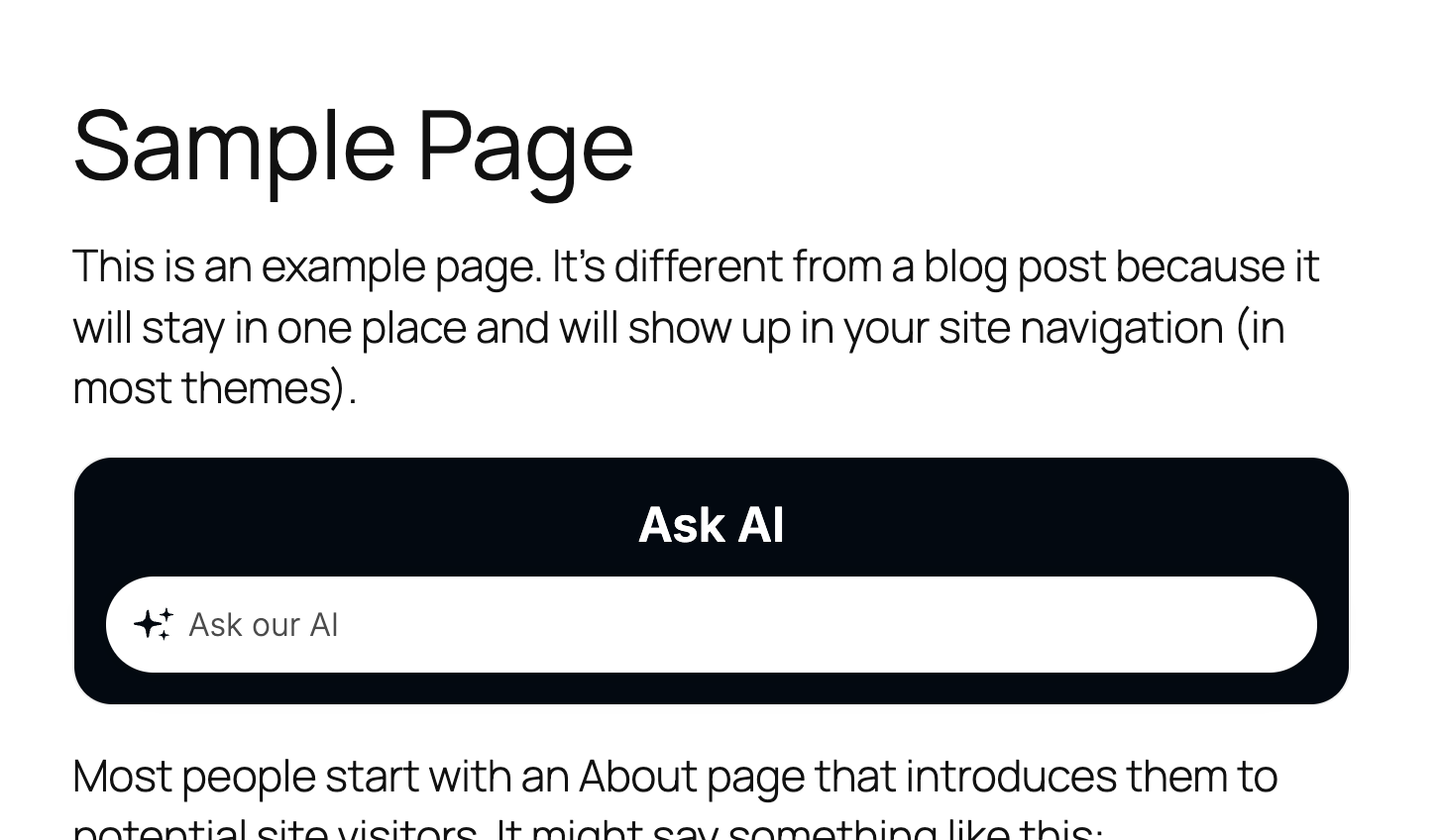
- Create an answer page for me (recommended): the page is created automatically with the answer widget already embedded in the main content area, as shown below. You can customize the page afterwards. If a page already exists at that URL, Gist leaves it as it is and tells you it already exists.
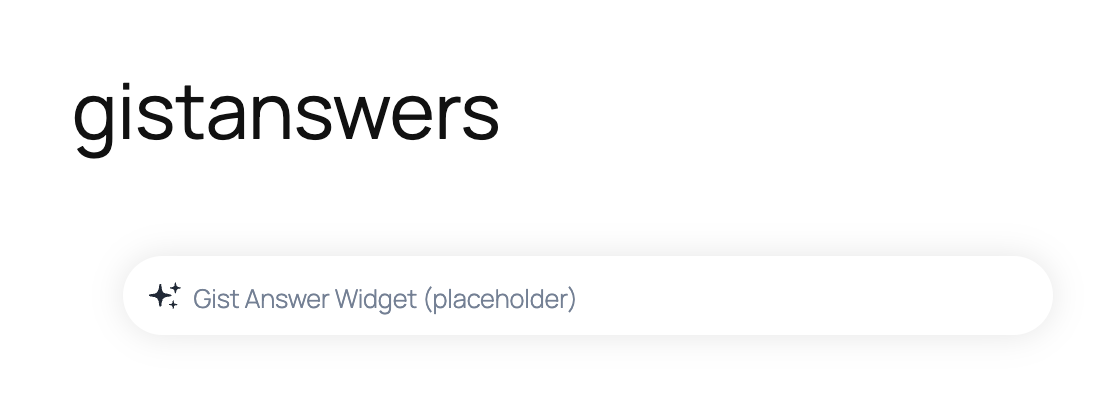
- I’ll create the answer page myself: you create the page and add the answer widget block, shortcode, or PHP code where you want answers to appear.
- Create an answer page for me (recommended): the page is created automatically with the answer widget already embedded in the main content area, as shown below. You can customize the page afterwards. If a page already exists at that URL, Gist leaves it as it is and tells you it already exists.
Add widgets to your pages
Choose one method for each widget placement: a WordPress block, a shortcode, or PHP code.
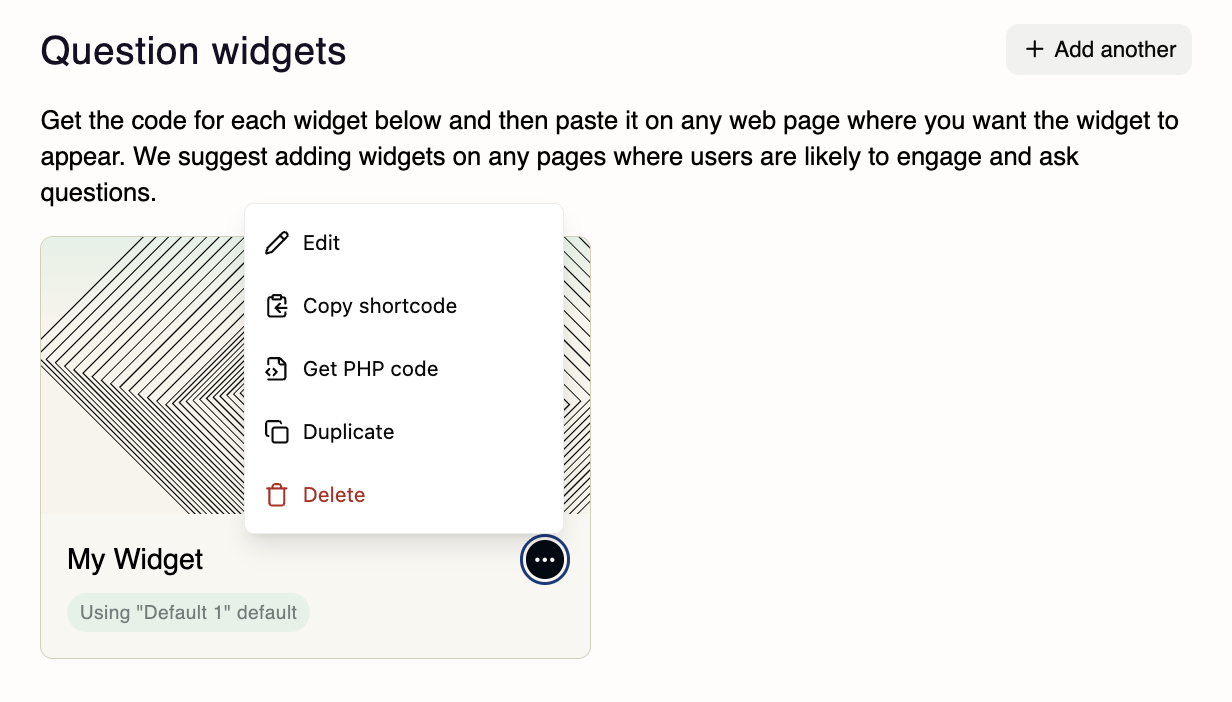
Your widgets are on the Widgets tab (click View Widgets on the Gist Answers dashboard). Open a widget’s ellipsis (⋯) menu. Edit changes the widget’s settings, and Copy shortcode and Get PHP code give you the code for the shortcode and PHP methods below.
- 1Open the page where you want the widget to appear.
- 2Add a Gist Answers block in one of two ways:
- Type /gist and choose Gist Question Widget or Gist Answer Widget.

- Or click the Block Inserter
 and choose a widget from the Gist Answers section at the bottom of the list.
- Type /gist and choose Gist Question Widget or Gist Answer Widget.
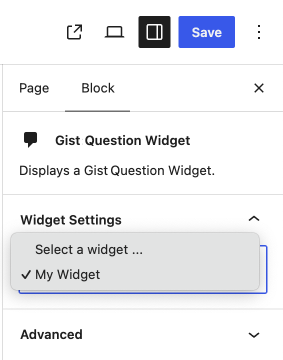
- 3With the block selected, open the Block tab in the right-hand panel. Under Widget Settings, click Select a widget… and choose your widget’s name.
- 4Click Publish or Save.
If you chose to create the answer page yourself, create or open the page at the URL you entered, add a Gist Answer Widget block, select the answer widget, and publish or save the page. If Gist created the page for you, the answer widget is already embedded.
You can add an answer widget to a page at any time, including after initial setup. To send visitors there from a question widget, make sure that question widget’s Answer page selection points to the intended page.
- 1On the Widgets tab, open the widget’s ellipsis (⋯) menu and select Copy shortcode.
- 2Open the page or post where you want the widget to appear.
- 3Click the Block Inserter and choose Shortcode. Paste in the shortcode you copied with Copy shortcode.
- 4Click Publish or Save.
Verify your setup
- Open a page where you added a question widget and confirm it appears.

- Submit a question and confirm it takes you to the intended answer page.
- Confirm the answer widget loads on that page.
- Review the ingestion status. Publishing a widget does not mean ingestion has finished.
- Once relevant content is available, submit a question about that content and review the response.
Optional widget customization
To customize other parts of your widgets or your Gist Answers experience, use the menu under the Gist Answers tab in WordPress. Under Manage, you’ll find Widgets, Questions, Sandbox, and Website Settings. On multisite, open the Gist Answers tab from each site’s own dashboard. The one in Network Admin lists all your sites but doesn’t include these options.

Customize a question widget

- 1Open Gist Answers → View Widgets. Under Question widgets, open the card’s ellipsis (⋯) menu and select Edit.
- 2You can rename the widget, choose its Answer page, preview its different states, and adjust Custom colors and fonts. Depending on the widget type, you can also adjust scrolling and pinning offset, the number of suggested question rows, and more.
- 3Accounts with multiple websites: account-level default settings let widgets across your sites share the same settings. Any change to a default setting is pushed to every widget that uses it. If using account default settings:
- To apply a different default setting to this widget, select from available defaults in the Use account default settings dropdown menu.
- To update the default used for this and any associated widgets, click Modify these default settings. Your edits will automatically propagate to any other widgets across websites in your account that share this default setting.
- To create a unique widget used only at this website, uncheck Use account default settings and click Edit settings for just this widget.
- Editing widgets on test sites can affect your live site. Test and production sites share the same widgets, so editing a widget updates it everywhere it’s used. To test safely, create a new widget for your test site, then add it to your live production site when it’s ready.
- 4Click Publish Changes.
Change an answer page URL
- 1Open Gist Answers → View Widgets. Under Answer pages, open the card’s ellipsis (⋯) menu and select Edit.
- 2Update URL for answers to appear, then click Publish Changes.
- 3Make sure any question widget that should send visitors there has that URL selected in its Answer page dropdown.
- 4Confirm that the WordPress page exists at the selected URL, then test the full question-to-answer journey.
Troubleshooting
You cannot find your API key

Look for the email from answers@gist.ai that contains your secret API key and the Set password button. Check your Junk or Spam folder. If you cannot find it, contact your Gist onboarding contact.
The plugin says your VIP configuration is incomplete
This applies if you added Gist Answers from the VIP Integrations Center. The plugin reads your API key from the VIP Dashboard, and this message means the key hasn’t been entered there yet. Until it is, the plugin stays disconnected and names the missing field.
In the VIP Dashboard, open your application, select Integrations, and choose the environment. Click Configure next to Gist Answers, enter the API key from your onboarding email in the Gist API token field, and save.
The plugin says the API key from WordPress VIP is no longer valid
Gist rejected the key saved in your VIP Dashboard. While VIP manages the key, you can’t replace it from the plugin.
In the VIP Dashboard, open your application, select Integrations, and choose the environment. Click Configure next to Gist Answers and enter a valid key in the Gist API token field. If you don’t have one, contact your Gist onboarding contact.
An “already exists” error appears when linking your site
The plugin links your site by matching the domain URL in WordPress to the domain URL saved in the Gist console. These URLs must match exactly. If the website name matches but the domain URL differs, you will see an “already exists” error.
Compare the two domain URLs and make sure they match exactly before trying again.
Your website is missing from the plugin
Contact your Gist onboarding contact to check the account connection. Include the website URL.
The question widget opens the wrong page
Check the question widget’s Answer page selection. It should match the intended answer page URL.
The answer page opens but the answer widget is missing
If you selected I’ll create the answer page myself, confirm that you created the page and embedded the answer widget there. If Gist created the page for you, check that it still contains the answer widget.
You updated the plugin but still see the old screens
WordPress caches the plugin’s code in your browser. Do a hard refresh: Shift+Command+R on a Mac, or Ctrl+Shift+R on Windows.
You want to see how many questions were asked on your site
Open the menu under the Gist Answers tab in WordPress. Under Reports, you’ll find Answers, Content Usage, and Revenue.
You need to deactivate the plugin
Go to My Sites → Network Admin → Plugins and click Network Deactivate under Gist Answers.

On a single site that isn’t part of a network, go to Plugins and click Deactivate under Gist Answers instead.
On WordPress VIP, if you added Gist Answers from the Integrations Center: in the VIP Dashboard, open your application, select Integrations, and choose the environment. Open the ellipsis (⋯) menu next to Configure for Gist Answers, select Remove Integration, and confirm with Remove. On a multisite network, this removes it from every site on that environment.
On WordPress VIP, if you installed manually and activated in code: Network Deactivate won’t appear. Remove the wpcom_vip_load_plugin() line from client-mu-plugins/plugin-loader.php and deploy the change instead.
You need help
Contact your Gist onboarding contact with the affected website or page URL, the step you reached, and the status or error you see.
